RSS Forum FeedFollow Us on Twitter!
Digiscrap Addicts
ForumProductsLayoutsTutorialsFreebiesSubscriptionsSponsorsNewsletterThe Fix

Go Back   DigiscrapAddicts Forum > The Learning Center > Tutorials

Reply
 
Thread Tools Display Modes
  #1  
Old 04-28-2009, 07:48 PM
frani_54's Avatar
frani_54 frani_54 is offline
Recreational Scrapper
 
Join Date: Mar 2009
Posts: 469
Bright Eyes

Tutorial for Bright Eye Effect
Instructions for PSPXI

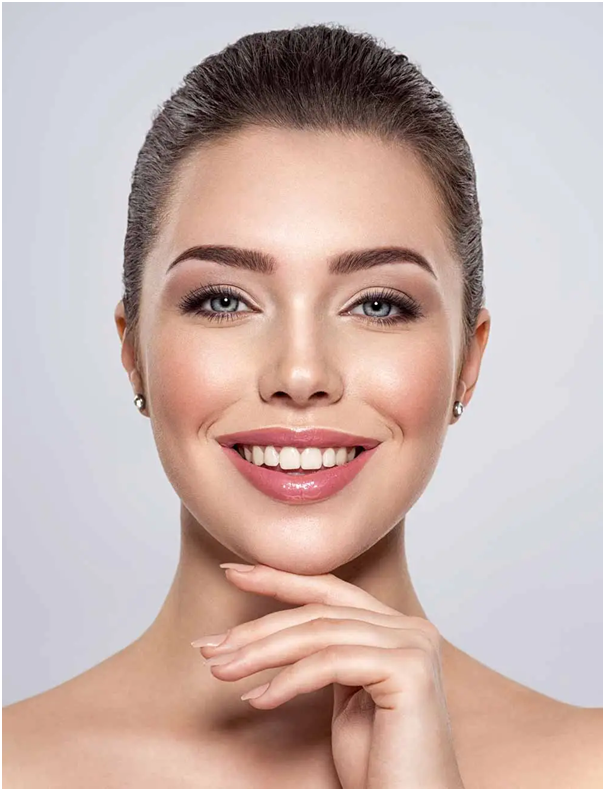
I chose a picture that the eyes were the focal point, this is the facial feature I wanted to capture and make pop out from the page.


1. Create a New Image: Go to File > New
2. Flood Fill new image with white
3. Copy and Paste Photo onto new Image / arrange where you want the photo
4. Go to Adjust > Brightness and Contrast > Levels
Threshold 68/137


What I wanted to achieve is to lighten the photo enough for the edges to blend into the background. In order to help it just blend into the background I used my magic wand with a feather ratio of 10 to select the area I wanted to get rid of.

5. Select and delete area you want to erase with your magic wand. There may be some little areas left to clean up use your eraser tool to clean it up some.


6. Finally to make it pop even more on your photo layer, use blend mode hardlight. It really makes this particular picture just pop right out of the page….


I wanted to thank the ladies over at DST that answered my question on how to get this effect, some of their answers sent me in this direction to play with the settings….Never hesitate to play around with your settings, you may come up with some really unique effects.
Reply With Quote
  #2  
Old 04-29-2009, 06:14 AM
Lizzy's Avatar
Lizzy Lizzy is offline
Habitual Scrapper
 
Join Date: Apr 2009
Location: Ireland
Posts: 625
Fabulous effect (and what a stunning photo, and end result!!). Shame I have PS and not PSP, lol!
Reply With Quote
  #3  
Old 04-29-2009, 08:32 PM
Amysout's Avatar
Amysout Amysout is offline
Recreational Scrapper
 
Join Date: Mar 2009
Location: West TN
Posts: 109
Oh, that's awesome!! Looks spectacular!! I'll have to try it this weekend!
__________________
Reply With Quote
  #4  
Old 04-30-2009, 11:56 AM
Mimi's Avatar
Mimi Mimi is offline
Recreational Scrapper
 
Join Date: Mar 2009
Posts: 181
Great tutorial! You can follow the same kind of steps for PS as well. :) Thanks!
__________________
Reply With Quote
  #5  
Old 04-30-2009, 05:11 PM
Reba's Avatar
Reba Reba is offline
Recreational Scrapper
 
Join Date: Mar 2009
Posts: 259
great Tut..
1 question how do you Flood Fill new image with white in PSCs4 ??
thanks
__________________
Reply With Quote
  #6  
Old 04-30-2009, 05:27 PM
frani_54's Avatar
frani_54 frani_54 is offline
Recreational Scrapper
 
Join Date: Mar 2009
Posts: 469
Quote:
Originally Posted by Reba View Post
great Tut..
1 question how do you Flood Fill new image with white in PSCs4 ??
thanks
Thanks Reba, I don't have CS4, but in CS3 have the color you want to fill your background in your toolbox.


Make sure the layer you want to fill is selected then
go to Edit/Fill/Background color
click okay

That should fill your new layer with the color you want for the background.
Reply With Quote
  #7  
Old 04-30-2009, 06:05 PM
Reba's Avatar
Reba Reba is offline
Recreational Scrapper
 
Join Date: Mar 2009
Posts: 259
Thanks I will try it again tomorrow.
__________________
Reply With Quote
  #8  
Old 04-30-2009, 06:26 PM
cupcake's Avatar
cupcake cupcake is offline
Recreational Scrapper
 
Join Date: Apr 2009
Posts: 398
Thank you for sharing. This is an amazing effect. All without using a plugin. :)
__________________
Reply With Quote
  #9  
Old 05-02-2009, 05:20 PM
Ruby's Scrappin Designs Ruby's Scrappin Designs is offline
Recreational Scrapper
 
Join Date: Apr 2009
Location: From Illinois
Posts: 44
I have psp 9....and i tried the tut but having problems...when trying to lighten with brightness and contrast level..i am not able to lighten the way you suggest...do you know how to do this in 9?
Reply With Quote
  #10  
Old 05-02-2009, 06:00 PM
frani_54's Avatar
frani_54 frani_54 is offline
Recreational Scrapper
 
Join Date: Mar 2009
Posts: 469
Quote:
Originally Posted by Ruby's Scrappin Designs View Post
I have psp 9....and i tried the tut but having problems...when trying to lighten with brightness and contrast level..i am not able to lighten the way you suggest...do you know how to do this in 9?
I am not familier with PSP9, I just checked the web to see what choices you get when you pull up the Brightness /Contrast selection and couldn't find anything. What you want to work with are the levels to control the brightness and contrast, to locate that maybe go to your help section of the program and search for levels?????

Email if you want at frani_54@yahoo dot com
Reply With Quote
Reply


Thread Tools
Display Modes

Posting Rules
You may not post new threads
You may not post replies
You may not post attachments
You may not edit your posts

BB code is On
Smilies are On
[IMG] code is On
HTML code is Off

Forum Jump


All times are GMT -8. The time now is 12:19 AM.


Powered by vBulletin® Version 3.8.1
Copyright ©2000 - 2010, Jelsoft Enterprises Ltd.

Support
Scrapbook MAX! Best Scrapbooking Websites   Best Scrapbooking Sites, Digital Scrapbooking, Scrapbook Supplies, Reviews, Awards     Digital Scrapbooking Top50